AI Fundamentals · · 19 min
How to Use AI at Work: 5 Levels, and the One Step That Moves You Up
Learn how to use AI at work with five practical levels, a 30-minute starter task, reusable rules and clear checks before delegating more work.
Last updated: November 12, 2026
To learn how to use AI at work, start with one task, give it context and check the result. Then save the rules that helped before you hand over more steps.
I used this approach to deliver 40 compliance courses in about six weeks, including review. At my previous pace, I estimated the same work would take about eight months.
Below are the five levels I went through, with one useful next step for each.
Using AI only to answer questions reminds me of the Lamborghini in my video. You start it for the air conditioning but never drive it out of the garage.
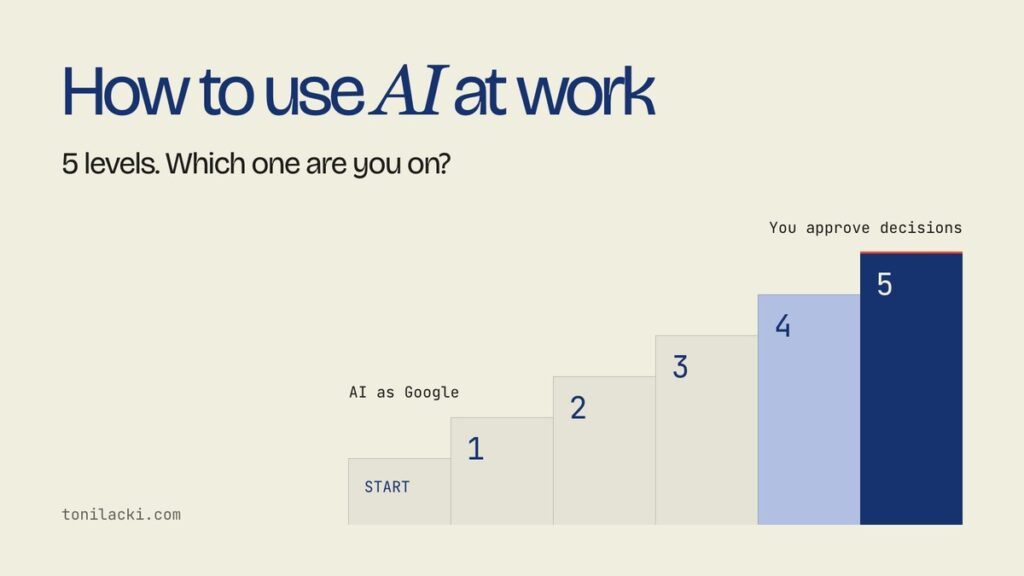
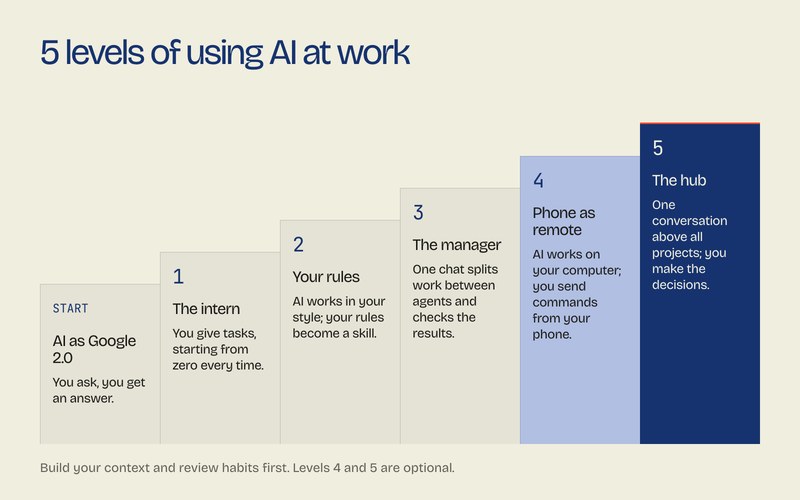
My model has five levels after a starting point I call level zero:
- Level 0: you ask questions.
- Level 1: you give simple tasks.
- Level 2: you write down your rules.
- Level 3: one chat manages AI helpers.
- Level 4: you run your computer from your phone.
- Level 5: one hub only asks you for decisions.
Each level describes how much work I hand over to AI and how I check what comes back.
Prefer to read? The five levels are explained below, with a prompt you can copy and a five-question test.
The video has Polish audio; as of November 10, 2026 YouTube offers auto-translated English captions for it (turn on Subtitles, then Auto-translate, then English).
Contents
How to use AI at work: the 5 levels at a glance
Here are the five levels, plus a starting point I call level zero, so the diagram has six steps. It’s my own model, built from how I work, not an industry standard.
Level 0 (start): AI as Google 2.0
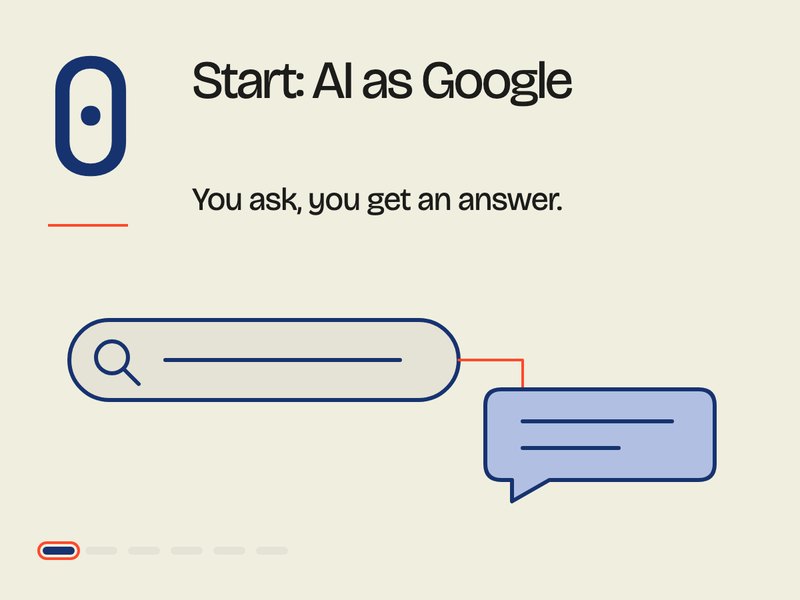
You ask a chatbot for an explanation or a summary instead of searching Google, and if it searches the web it can pull from several pages at once. Still, check the sources behind any claim you plan to use.
A typical question: “What’s the difference between hiring a contractor and an employee?” You get a decent summary, and that’s it. For anything legal, medical or financial, check the source.
Also check your company’s AI policy before you paste in client data.
But you have something in your pocket that could do work for you, and you’re using it as a search box.
Next step: write your next request as an instruction. So instead of asking “what makes a good apology email?”, you tell it “write an apology email to a client whose delivery arrived three days late”.
If you’re still choosing a tool, see my comparison of Claude vs ChatGPT.
Level 1: AI as an intern for simple tasks
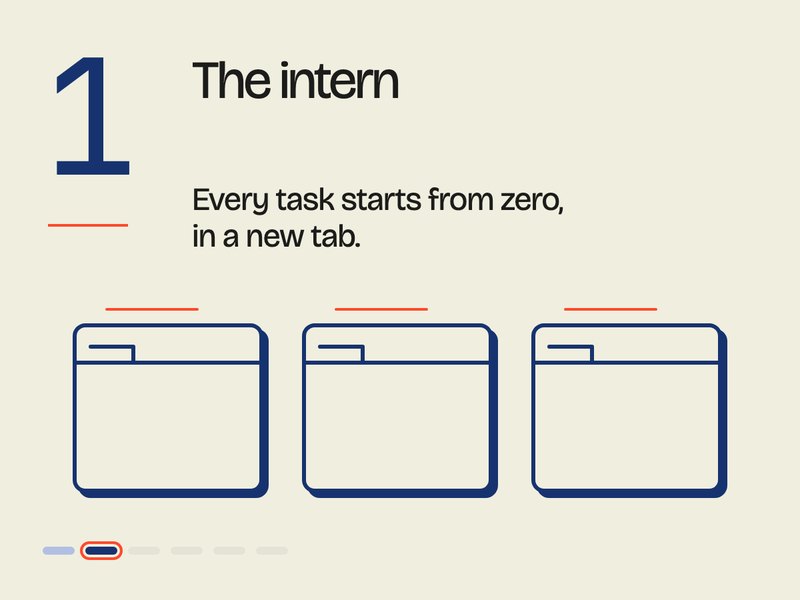
At this level you stop treating AI like a search engine and start treating it like an intern. You hand it simple tasks like these:
- “Make me a graphic for this post.”
- “Here’s my email. Can we make it better?”
- “Draft a strategy for launching our product in a new market.”
After a meeting, I drop my messy notes into AI and get back a list of who does what by when.
The problem is that each task usually lives in a new tab, so you explain the context from scratch every time. Without the project context, the draft may be too generic or miss details you need.
What moves you up: keep each project in one place. As of November 10, 2026, ChatGPT and Claude offer Projects, with availability depending on the product and plan.
Gemini has Gems, which Google is converting into skills from November 17, 2026, for personal accounts belonging to users aged 18 or over.
Check what your account shows. Keep your approved materials and instructions together, then start a new conversation there and check that AI uses the relevant details.
If ChatGPT doesn’t feel like the right fit, I looked at other options in ChatGPT alternatives.
Level 2: how to use AI at work with your own rules
Level two is when AI starts doing real work for you. It might read client emails and draft replies that sound like you. How does it know your style? You gave it emails you wrote yourself.
The tasks can get a lot more complex here:
- “Edit this video for me.”
- “Read the emails from this client and suggest how we could sell them more.”
The catch is that all of this usually happens in separate chat windows, and it’s easy to lose track of them.
At this stage you’re the manager: you remember which window does what and copy results from one chat to the next.
Plenty of people are right here, and that’s completely normal. For most office work, levels 2 and 3 already give you a lot, and levels 4 and 5 are optional.
Next step: write down your rules and turn them into a skill
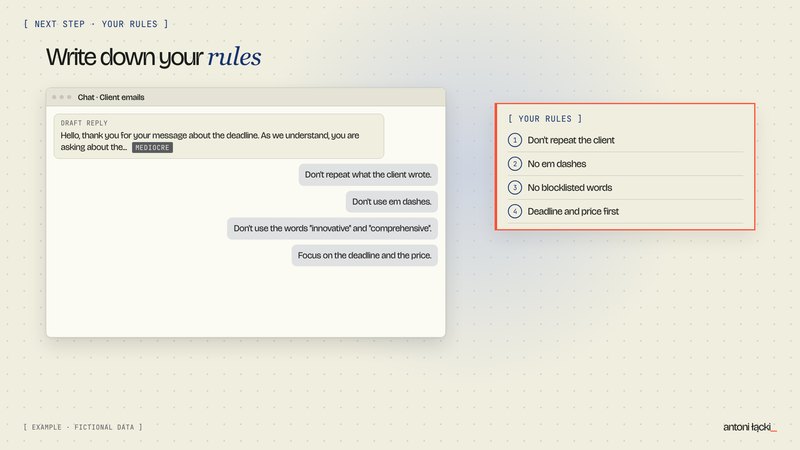
Say you have a chat where you answer client inquiries. The first replies were probably mediocre, so you gave feedback along the way:
- “don’t repeat what the client wrote, it just makes the email longer”,
- “don’t use em dashes”,
- “don’t use these particular words”,
- “focus on this, not on that”.
That’s how you built a set of rules. The only problem is that they live inside one conversation.
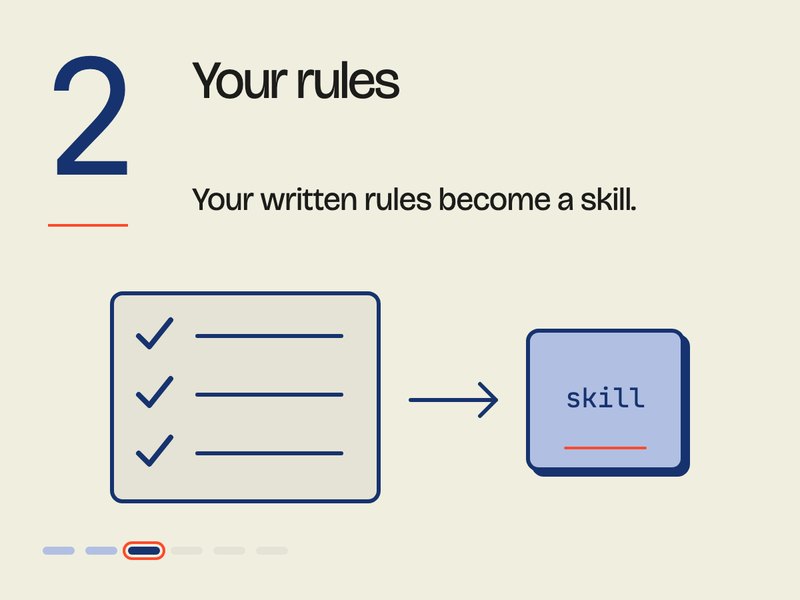
So ask AI to analyze that conversation and turn it into a skill. A skill is a saved instruction with your rules that AI can switch on for a certain type of task, like client emails.
Save it using your tool’s supported settings: a skill, or project instructions, which only apply inside that project. Then open a new conversation and test it on a sample email before you rely on it.
The prompt can look like this:
In my experience, saved rules help AI get closer to my style, though I still review every draft.
Level 3: how to use AI agents at work, with one chat as your manager
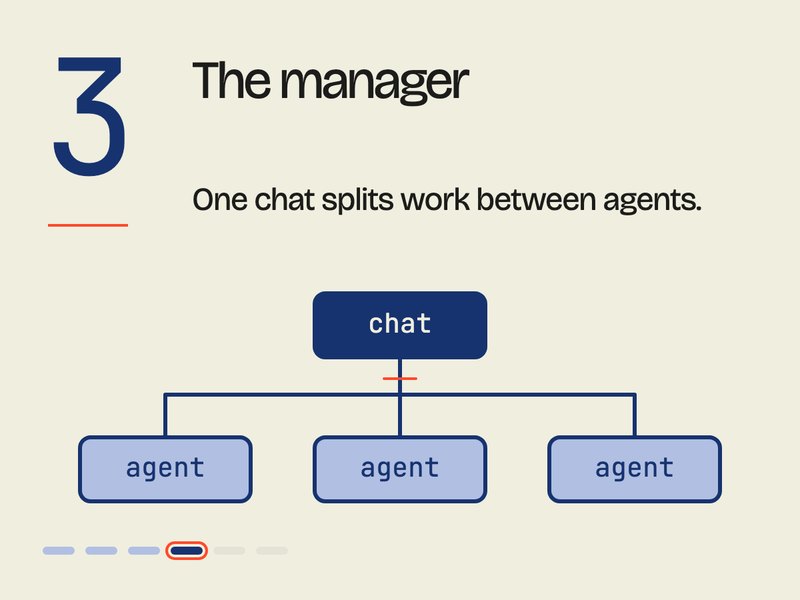
At level three, one chat coordinates the work you used to pass between separate conversations, so it becomes your manager. It’s like hiring a team lead who splits tasks among the people under them.
Here those people are agents: AI helpers that each get one task and work through its steps on their own.
As of November 10, 2026, I use Claude Code for this. For a first test, use a manager session that supports separate agents.
Ask the manager to assign one agent to draft an email from sample notes using your saved rules.
Then ask the manager to assign a separate agent to review the draft against your rules. Ask the manager to return both outputs, and read them before you use the result.
Say you tell your marketing manager chat that you need graphics for a new campaign. It sends out agents that make them using your rules from level two. At this level, three things make the difference:
- A review step. A separate agent checks the output against your rules and catches some mistakes before you see it. Not all of them, because the reviewer can share the writer’s blind spots, so the final call is still yours.
- Teaching the manager. It doesn’t learn on its own. You teach it with context from other conversations, your skills and your company procedures.
- The right model for the task. You don’t need to hire a professor to check grammar or punctuation. A faster, cheaper model may be enough, but test whether it meets your quality bar.
Example: 40 courses in six weeks instead of eight months
This is what it looks like in my own work. I had to build 40 compliance courses, the kind that cover rules a company has to follow, like data protection.
At my previous pace of roughly one course a week, that would have taken about eight months. With AI I delivered them in about six weeks.
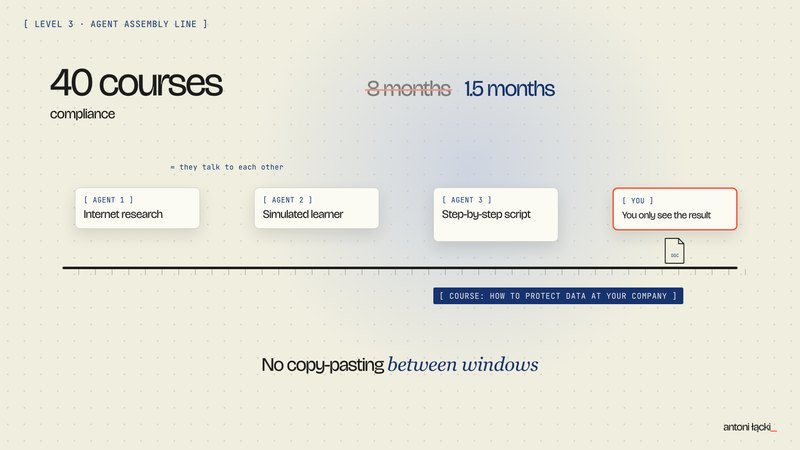
It worked like an assembly line where every AI helper has one job. One helper researches the market and the regulations. Another takes the learner’s role and checks whether the course plan makes sense from that perspective.
After that come helpers that outline the lessons, write the text, hunt for made-up facts, build the interactive course and check that it displays correctly.
They pass the work to each other, so I didn’t copy anything from window to window. I set up the line and checked the results.
Experts on the relevant regulations also reviewed the first seven courses, and they had one comment about a single word.
Before building something like this, I’d test each stage on its own, because a mistake in stage two gets copied all the way to stage seven. Picking models per stage and keeping costs down is the advanced part.
Of course, this is one example from my work, and your results will depend on your process and your reviewers.
If you run a training, enablement or compliance team, try writing down the stages of one of your processes the way I listed them above.
When you want a second pair of eyes on that list, see how I build AI production lines with teams.
Optional next step: if remote access would help, start with a copy of one non-sensitive folder. At work, get IT approval for the connection and permissions first. Test a read-only request from your phone before you allow changes.
Level 4: AI on your computer, run from your phone
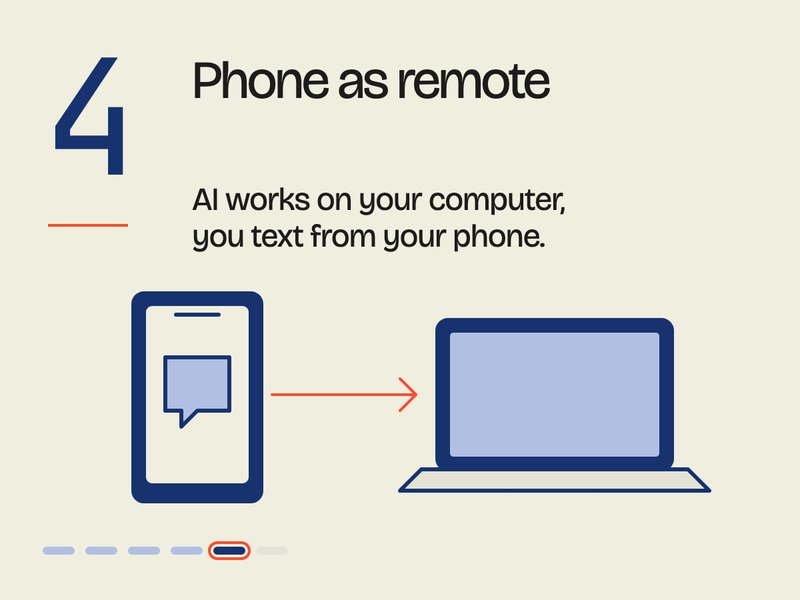
At level four, you message an AI session on your computer from your phone, a bit like texting a colleague.
The computer needs to stay awake and connected, with the session and remote connection running, and AI can then use the files and apps its permissions allow.
In my video published on November 7, 2026, I describe this workflow using a configured computer session. You dictate a script into your phone.
The session on your computer then builds the animations, transcribes the audio and matches the screen to each moment.
If needed, it also records a voice-over in your cloned voice. Once you’ve watched and approved the video, you can publish it to Vimeo and your website through a configured API or MCP connection.
An API is an official doorway that lets one program act inside another.
MCP is a standard that lets AI connect to tools like that (modelcontextprotocol.io).
I’ve made about fifty videos with AI in a similar way. One used to take me four days to a week. Once the setup was in place, the voice and animations were ready in about an hour.
My part became watching and fixing, which takes one to fifteen minutes.
At this point you might wonder: does AI get access to my whole computer? Not automatically. It can use the folders, apps and permissions you give it, which is exactly why those settings matter.
In my setup, sensitive actions, like running a command in the terminal (the window where you type commands instead of clicking), trigger an approval request on my phone.
Other setups need their permission and approval settings checked on test data before you rely on them.
This level also comes with risks. AI reads emails and web pages, and they can contain a hidden instruction telling it to do something you don’t want. That’s called prompt injection.
An approval prompt doesn’t stop it by itself, because you can still approve the wrong thing.
So give AI only the access the task needs, and enforce those limits through the tool’s permissions rather than a request in the chat. Keep sending, payments and deletion under human control.
In my setup the AI helpers don’t delete files, and a backup copy of the folder is made before they start. That protects me from accidents, but a backup doesn’t help if data leaks out, so access still matters most.
Your phone also becomes a key to your computer. Keep a screen lock on it, and if it gets lost or stolen, end the remote session right away.
When notifications pile up, it’s easy to start tapping “approve” on autopilot, so read what you approve. Once, a draft message from AI tagged a person with the same first name as the right recipient.
I only caught it because I read the draft before sending.
At work, agree these rules with IT and security before connecting a phone to the AI session. It also helps to know where AI still breaks, and I wrote that up in AI limitations.
Optional next step: test a hub with two projects containing fictional data. Send a task for one project and check which session receives it and which files it can access.
Level 5: the hub, one conversation above all your projects
I spent a long time at level four, but there’s one more level above it. I got there thanks to Maciej Aniserowicz, a Polish developer and creator I follow on Instagram, whose setup showed me what this could look like.
Later he shared a guide to his setup on agentstyle.pl (in Polish). That made building my own local app much easier.
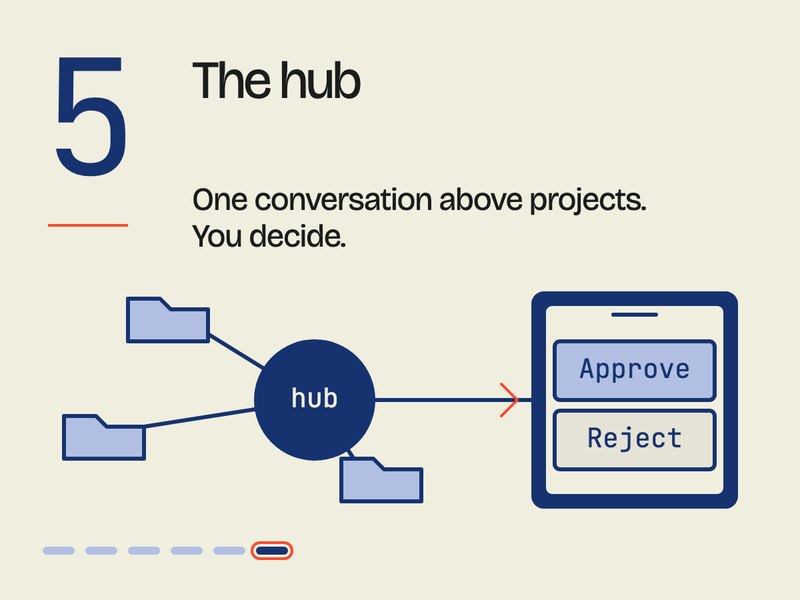
Level five is the hub: one session you talk to, a bit like a director. It takes a command about any project and passes it to the manager responsible for that project.
In my setup every project has its own session, and the hub decides where each task goes and collects the results.
The hub handles most of the coordination and only sends a notification to your phone when it needs your decision. Then you approve, reject or say what the next steps should be.
Because there are fewer notifications, each one deserves a proper read. My hub has only been running since October 31, 2026, so I’m still learning what works.
Two things I’ve learned so far:
- I built the hub app instead of downloading it. When I want to change something, I tell it what to add, refresh, and the app is different. It still feels a bit unreal to me.
- Money and decisions stay with me. My hub doesn’t spend my money: when I need a domain or an account, it lands on my list and I buy it myself. Design decisions I handle from my phone.
If you want to try a hub, start with two non-sensitive projects and give each one separate permissions.
Check where each request goes and whether it can reach the other project’s data. Keep an action log and a way to revoke access.
How to use AI effectively: why skipping levels backfires
You might be thinking: fine, I’ll jump straight to level five. In my experience, adding more autonomy before you’ve tested your context and review rules makes mistakes harder to catch.
Those are the foundations I’d build first, while phone access and a hub are optional.
Without your context and review criteria, a more independent setup can repeat generic output, AI slop anyone could get, across more tasks. It can also repeat factual mistakes, so those checks matter before you delegate more work.
Even a better model doesn’t know your requirements unless you give them to it.
That’s why I’d test one process before giving it more independence, and you can stop at whatever level helps your work.
Which level are you on? A five-question test
Use these five questions to find your starting point. Answer all five questions. For questions 1 to 3, count consecutive yes answers from question 1 and stop at the first no. That gives you level 0, 1, 2 or 3.
If all three are yes, check question 5 next: a yes means level 5, even without phone access. If question 5 is no, a yes to question 4 means level 4; otherwise you stay at level 3.
- Do you give AI tasks (“write”, “prepare”, “analyze”), not just questions?
- Does AI do work for you in your style, on your own materials, rather than generic drafts?
- Do you have one chat that splits work between agents and checks results against your written rules?
- Does AI work on your computer, and can you give it commands from your phone when you’re away from your desk?
- Do you have one session that routes work between projects by itself and only asks you for decisions?
Before you delegate more work, test any missing foundation from questions 1 to 3 on a task you actually do. Phone access and a hub stay optional.
I’d like to know which level you’re on and what you use AI for right now, so tell me in the comments under the video on YouTube.
How to use AI in the workplace: the same staircase for a whole team
If you run a team, your questions are different. You already pay for the licenses, so you want to know what the work costs now, how much time people get back, what the risk is and who is accountable.
A team also needs four things in place before it expands AI use:
- written team rules,
- an owner for each process,
- quality control,
- sign-off from security for every next step.
I’d judge a team’s AI maturity by reliable results, clear ownership and recovery when something fails, and phone access and a hub are optional choices. People also call this an AI maturity model, or levels of AI adoption.
For a team, assess one process at a time: record its volume, handling time, review time, error rate and tool costs before you change it, then compare the cost per accepted result after a small pilot.
The 40 courses are one example of what it can look like in practice.
I help teams in global companies take this path, from chat with no rules to processes the team runs and checks itself, while people keep the final decisions.
See if one of your processes is ready. I work with teams the way I built the courses. First I learn your process. Then we build the new version together on your real work.
For one agreed workflow, I deliver a working version in production within four to six weeks of access and security approval.
We agree the scope and acceptance criteria first, and if your team is waiting on an internal dependency, the clock pauses. It starts with a 30-minute call to see if one of your processes is ready.
See how I work with teams and book the call.
Your first 30-minute AI task at work
If the five levels feel ambitious, start with a small task that does not need connected accounts. Use these fictional meeting notes: a customer wants an onboarding checklist; the product specialist will confirm the import format; no delivery date was agreed. The output is an internal draft, not a message to the customer.
- Write the brief: “Turn these notes into an action list. Use columns for action, owner, deadline and supporting note. Write ‘not agreed’ where information is missing. Do not invent commitments.”
- Inspect the result: did AI invent a deadline, assign an unnamed owner or imply that the import format was confirmed? Correct those errors before polishing the wording.
- Save one useful rule: “Never convert an open question into a promise. Keep missing owners and dates visible.”
- Try a second sample: include a changed deadline and an explicit cancellation. Check whether the rule works on new notes rather than only on the example that produced it.
- Decide whether to keep it: compare the time spent briefing, checking and correcting with the time you would spend writing the action list yourself.
This is enough for a first experiment. You do not need agents, phone access or a hub to learn whether a clear brief and a saved rule improve your work.
A simple record of the result
Write down the task, the original source, the rule you saved, the error you caught and the total minutes required. Keep “draft accepted” separate from “message sent.” Only move to a connected workflow when you know what should happen, who approves it and how to recover if it goes wrong.
How to use AI at work starting tomorrow: one step
Use the test to pick one change that would help a task you already do, then check whether it saves time once you count the review.
If you’d rather watch, I walk through every level with animations in my video on how to use AI at work, level by level.
It has Polish audio, and as of November 10, 2026 YouTube offers auto-translated English captions for it (Subtitles, then Auto-translate, then English).
On YouTube it’s titled “How to use AI better than 99% of people (5 levels)”, and the 99% is part of the title, not a statistic.
And if you’d rather take that next step with your whole team, start with one process on tonilacki.com.
FAQ: how to use AI at work
Start with one repetitive task, like replying to client emails. Give AI an instruction with context, save the rules that worked as a skill, and only then connect tasks into a process with agents.
Common starting points are summarizing documents and meeting notes, drafting emails in your tone, researching a market or a regulation, preparing first drafts and planning projects. Pick the task you repeat most often.
Start with one repeatable process, give the agents your written rules and add a review step. Test on a small example before you connect live systems, and keep sending, payments and deletion under human control.
Give it context, save the rules that work, and keep the final say on decisions and money. In my experience, how much AI knows about your work matters more than the number of tools.
Yes, when your employer permits the tool, the task and the data involved. A provider agreement isn’t permission to share every confidential document, so keep passwords and API keys out of chat and check the output.
Give AI only the access it needs and keep sending, payments and deletion under your control. Read every approval request, and at levels 4 and 5 watch for prompt injection hidden in emails or web pages.
No, but you need some technical comfort with the terminal and access settings; I built my hub with AI from the agentstyle.pl description. Never approve a command you can’t verify: ask AI to explain it, or ask someone technical.
There’s no fixed time: it depends on how much of your work you do with AI, and I stayed at level four for a long time. Move on when you can check results and handle errors.
Yes. As of November 10, 2026, ChatGPT, Claude and Gemini offer free access with limits, so check file uploads and saved instructions. Connected workflows may add subscription or usage costs, and company data rules still apply.
What changed (as of November 10, 2026)
- At levels 3 to 5 I use Claude Code in the terminal, and herdr, a terminal multiplexer, keeps each project’s session in one place.
- For videos: Hyperframes for animation, ElevenLabs for transcription and voice-over (Whisper also works locally), Vimeo for hosting. These tool names describe my setup as of November 10, 2026.
- Gemini: Google says Gems will transition to skills from November 17, 2026, for personal accounts of users aged 18 or over.
- My hub has been running since October 31, 2026, so I’m not sharing numbers yet. From day one it hasn’t been allowed to spend my money.
- The video “How to use AI better than 99% of people (5 levels)” came out on November 7, 2026 and runs 13:27 (Polish audio).
- “99%” is from the video title, not a study. The data on screen in the video is sample data.
Comments